Create a budget
This is for budgets built in FinBoard. If your company’s budget source is set to QuickBooks, budgets are created in QuickBooks instead and appear here after a sync.
Open Budgets in the sidebar to see everything already in place.
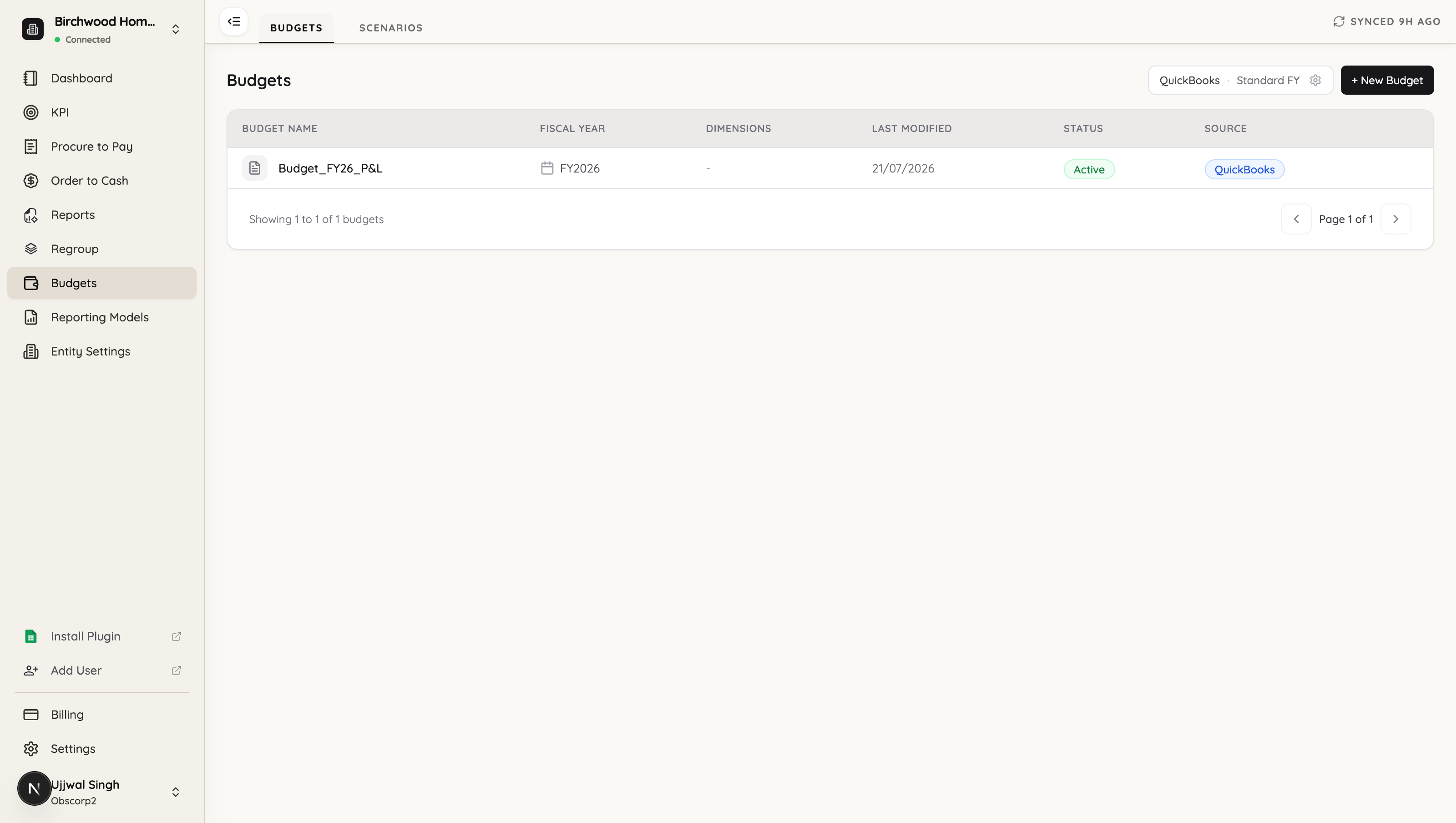
Each budget shows its Fiscal Year, the Dimensions it is split by, its Status, and its Source — so you can tell a QuickBooks budget from a FinBoard one at a glance. Click + New Budget to start.
Step 1 — Budget details
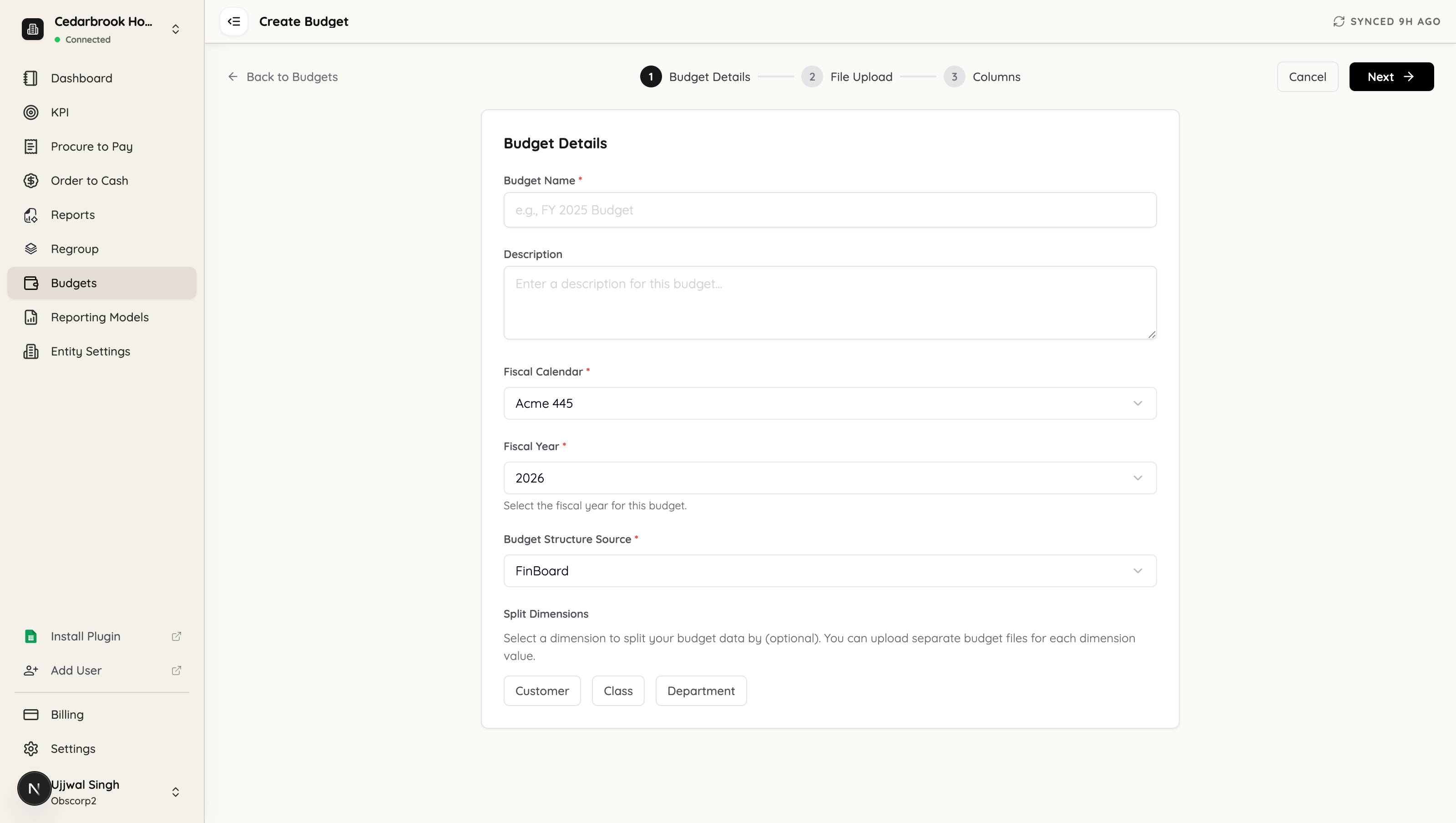
| Field | What it does |
|---|---|
| Budget name | How it appears in the list, and in the report builder later. Use something a colleague would recognise — FY 2026 Plan, Board Case. |
| Description | Optional note for your team. |
| Fiscal calendar | Generates the budget’s periods. Standard fiscal year, or a custom one such as a 4-4-5. |
| Fiscal year | The year this budget covers. Reports only offer budgets matching the year being reported. |
| Budget structure source | Which chart of accounts you will map to. |
Budget structure source
This is the choice between mapping to your QuickBooks chart or to a FinBoard structure.
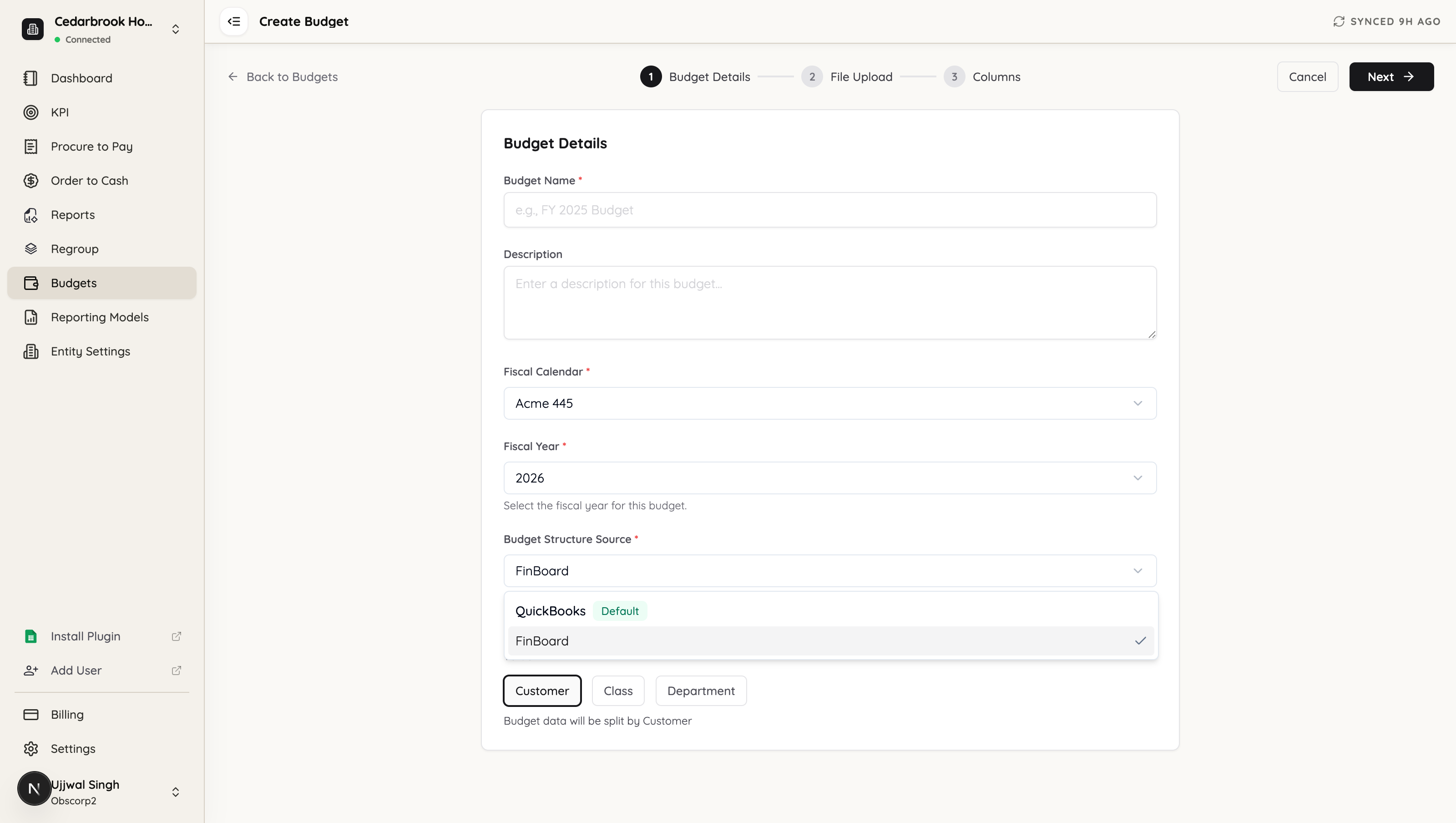
- QuickBooks (default) — map budget lines to your QuickBooks accounts. Right when the budget is written at the same level as your books.
- FinBoard — map to a structure you built in Regroup Accounts. Right when you budget at a summarised level, or in your own language, rather than account by account.
Split dimensions
Optional. If your budget is planned per customer, per class or per department, select that dimension here.
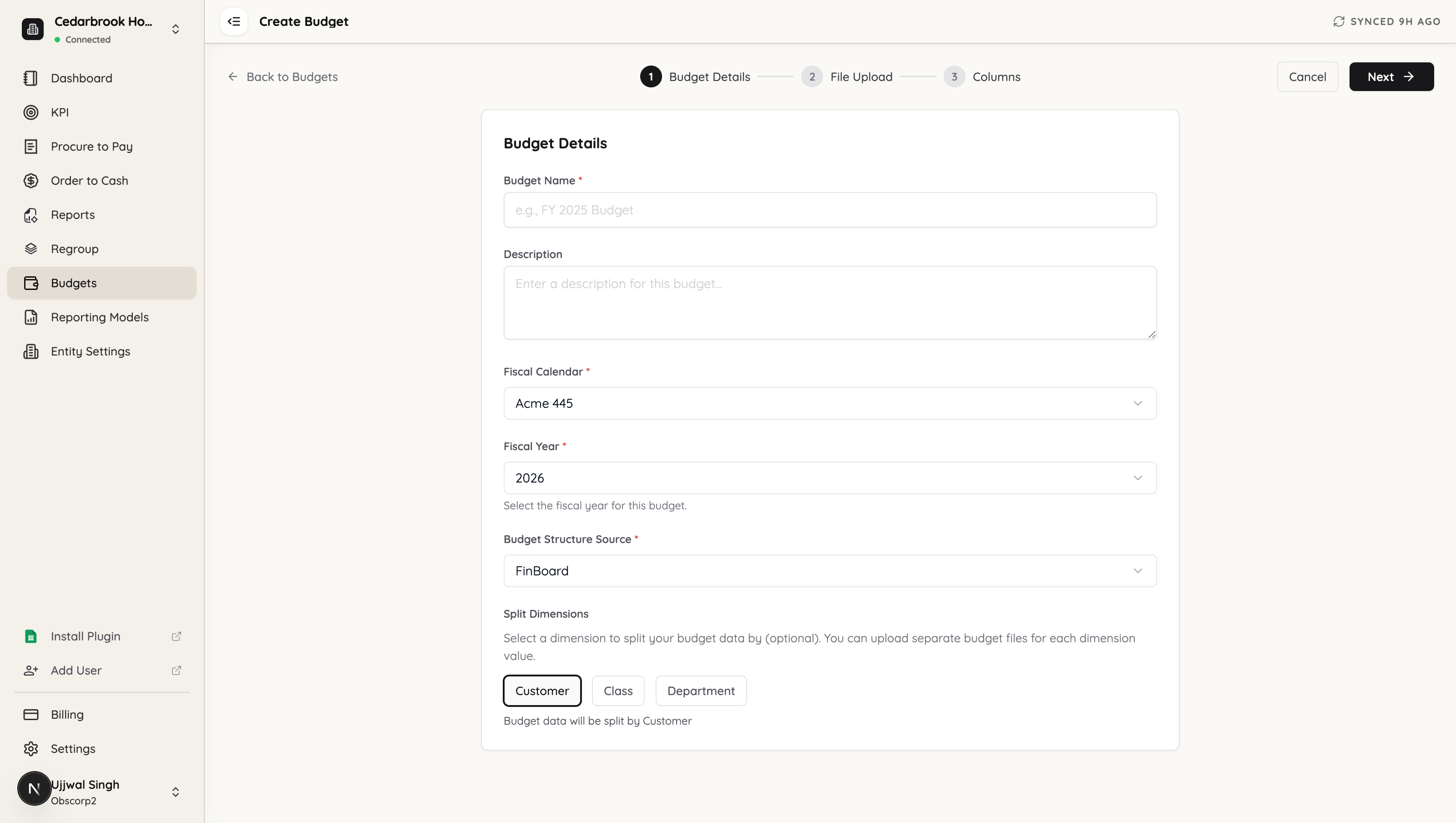
Choosing a dimension changes the next step: you upload one file per value of that dimension — a file per customer, per class, or per department. Leave it unset for a single company-wide budget.
For a multi-entity group, Company is selected automatically. See Consolidated budgets, which works differently from here on.
Step 2 — Upload your files
Upload the budget as CSV or XLSX. If you chose a split dimension, upload a separate file for each value and tag each one with the value it belongs to.
FinBoard then shows a preview of the first rows so you can tell it how to read the file:
- Header row — which row holds your column titles.
- Account column — which column holds the account names.
Nothing is parsed until you confirm these, so a file with notes or a title block above the real header is fine.
Step 3 — Columns
FinBoard generates one column per period from the fiscal calendar you chose in Step 1, and asks you to confirm them against your file. This is where a mismatched calendar shows up — twelve monthly columns against a 4-4-5 file will not line up, and the fix is to go back and change the calendar rather than force the mapping.
Once confirmed, the file is processed: rows are created for each account and dimension value.
Step 4 — Map the rows to your chart of accounts
Once the file is processed, the budget opens as a grid. This is where the rows from your spreadsheet are pointed at real accounts, so budget and actual can sit side by side in a report.
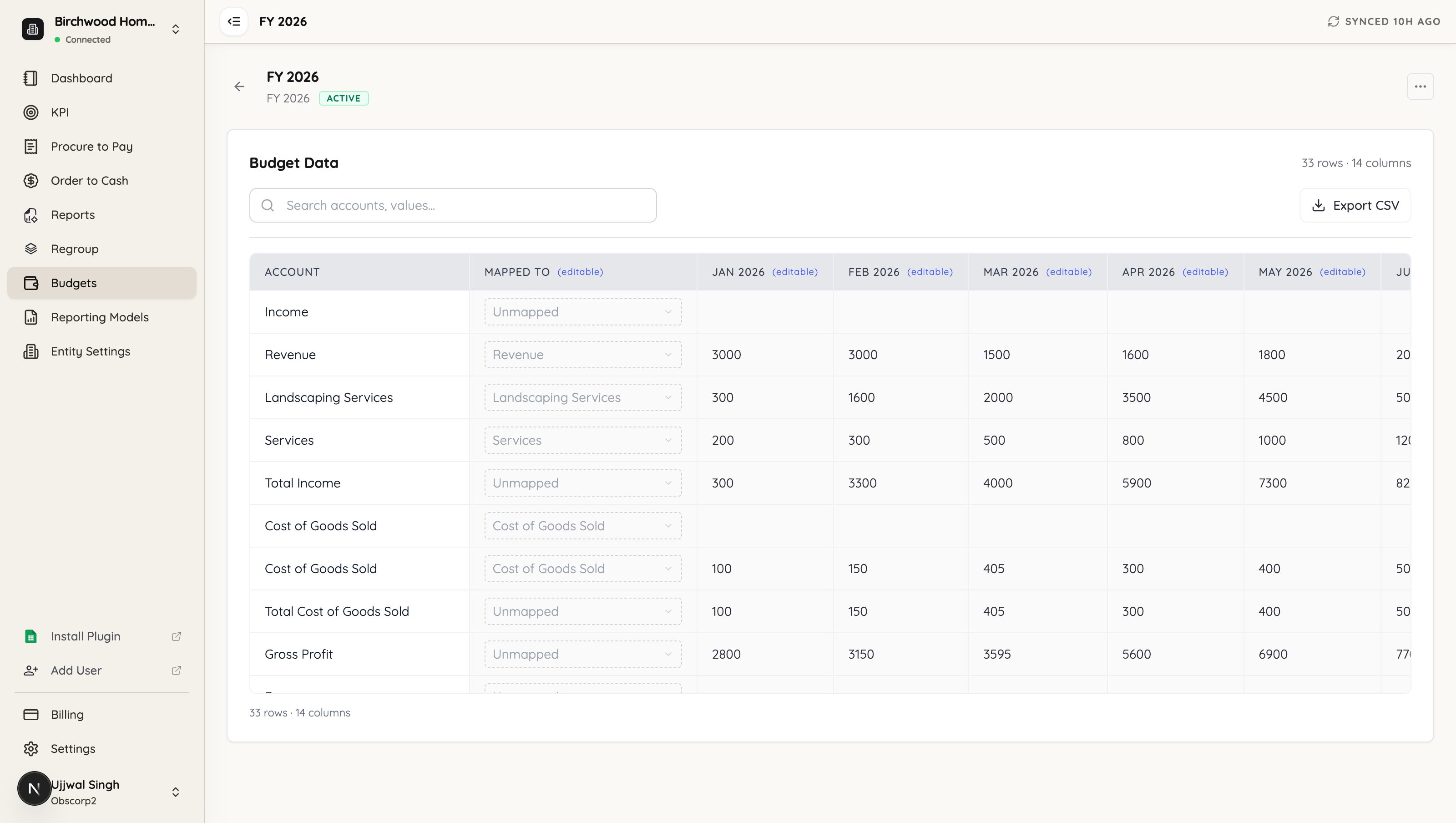
- Account — the rows exactly as they came from your file.
- Mapped To — the account in your chart that each row feeds. Editable, one row at a time.
- One column per period — the values, also editable, so you can correct a figure without re-uploading.
FinBoard proposes matches for you rather than starting from nothing. Magic Map suggests mappings across the whole file at once; change any row where the suggestion is wrong.
Not every row should be mapped
Spreadsheet budgets usually contain subtotal and header rows — Income, Total Income, Gross Profit in the example above. These are calculations in your file, not accounts, and they correctly stay Unmapped. Mapping them would double-count, since FinBoard computes those totals itself from the accounts underneath.
Map the account rows; leave the arithmetic alone.
Anything else left unmapped contributes nothing to a report, silently — no error, just a number that never appears. Use the search box to sweep for remaining Unmapped rows before you finish, and Export CSV if you would rather check the whole thing in a spreadsheet.
Mark it active
A new budget is created as a draft, and drafts do not appear in reports. When it looks right, open the budget and choose Mark as Active.
This is the single most common reason a budget is missing from the report builder: it was built correctly but never activated. If a budget you just made is not in the dropdown, check its Status column on the Budgets list first.
Next
- Use a budget in reports — adding budget-versus-actual columns
- Consolidated budgets — rolling entity budgets into a group