Consolidated reports
Create consolidated reports from the FinBoard extension in Google Sheets. The report reads the member companies through the group company’s shared structure, so choose the group and the named mapping deliberately before you create it.
Create a consolidated report
- Open the workbook where you want the report and launch the FinBoard extension.
- Select Create Report.
- Choose the Group Company rather than an individual member company.
- Select the report type: Profit and Loss, Balance Sheet, or Cash Flow.
- Set the reporting period and any display columns you need.
- Open Apply Mapping and choose the named mapping for this audience, such as Board Meeting or Management Review.
- Select the consolidation options described below, then create the report.
The mapping is applied to each company before the values are summed. That is why a group can report cleanly even when its member companies use different charts of accounts. The report does not change any source QuickBooks books.
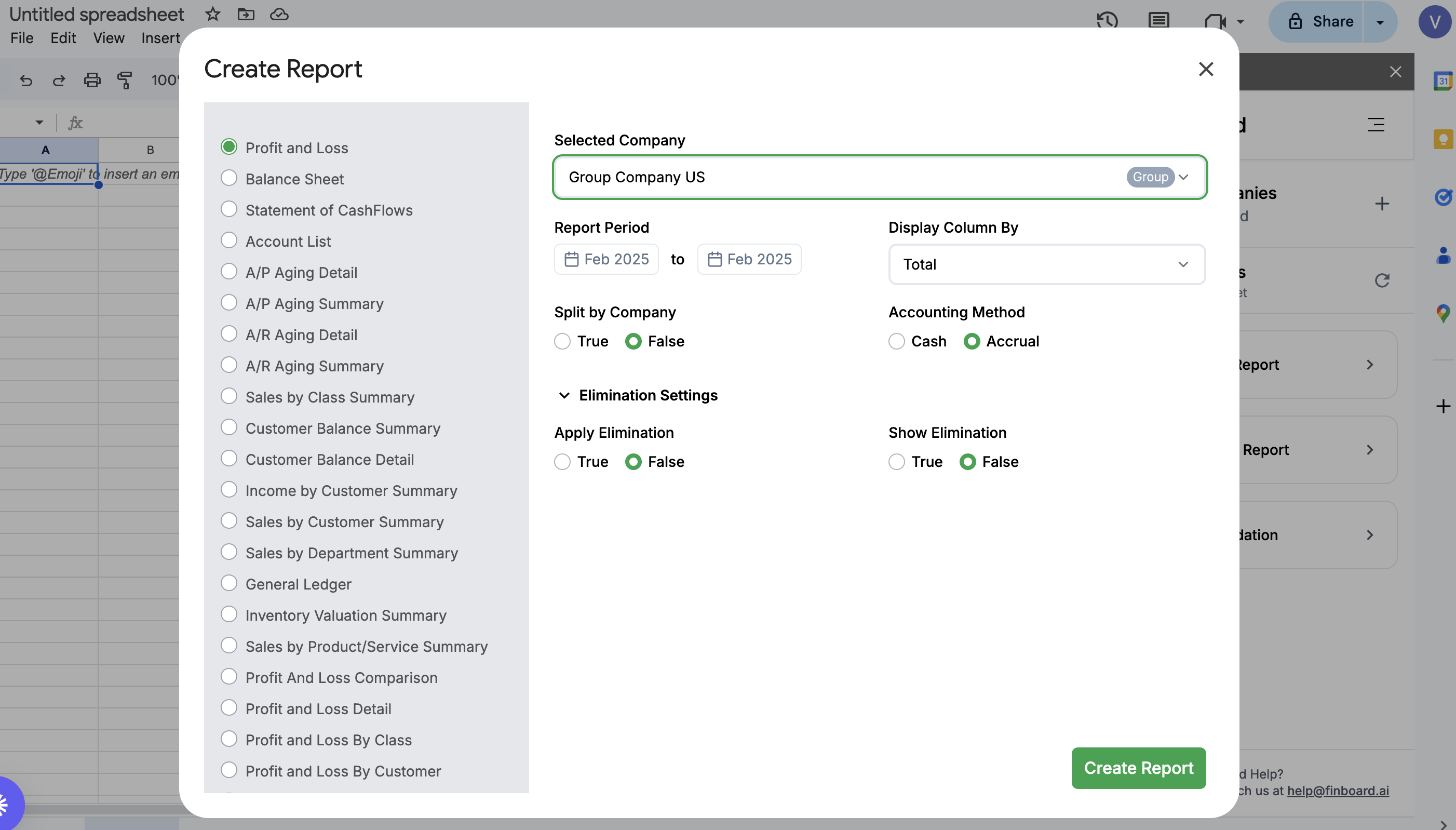
Consolidation options
Split by Company
Select Split by Company to show each member company’s values alongside the consolidated total. This is useful for reviewing contributions, checking a group tie-out, or sharing a single report with entity owners. Leave it off for a presentation that needs only the consolidated totals.
Apply Elimination and Show Elimination
Use Apply Elimination only after intercompany accounts have been configured and reviewed in Consolidation for the reporting period. It applies the configured elimination treatment to the consolidated total.
Select Show Elimination when you also want the eliminated values displayed in their own column. This makes the bridge from the pre-elimination figures to the consolidated total visible for review. If eliminations have not been configured and reviewed, leave both options off and resolve that setup first.
Save and refresh the workbook
The created report stays in the workbook, including the group, report type, period layout, and mapping used to create it. For a later close, refresh the report in the same workbook when the new period’s QuickBooks data is ready. The refreshed report continues to use the mapping it was created with; it does not silently switch to another mapping.
If each close has its own workbook, copy the reporting package and use Copy and Link Spreadsheet so the new workbook retains its FinBoard report connections and can refresh independently.
Related
- Set up consolidation — build the shared structure, map accounts, and configure eliminations
- Regroup Accounts — create and maintain named mappings
- Apply mapping in reports — choose a mapping when creating any report
- Build and reuse a custom monthly P&L — a recurring workbook workflow
- Consolidated budgets — select member budgets and roll them into the group