When QuickBooks accounts change
When accounts are added, renamed or moved in QuickBooks, your FinBoard mapping does not change on its own. That is deliberate — the whole point of a mapping is that its structure is yours, not a mirror of the books.
FinBoard tells you when the two have drifted apart:
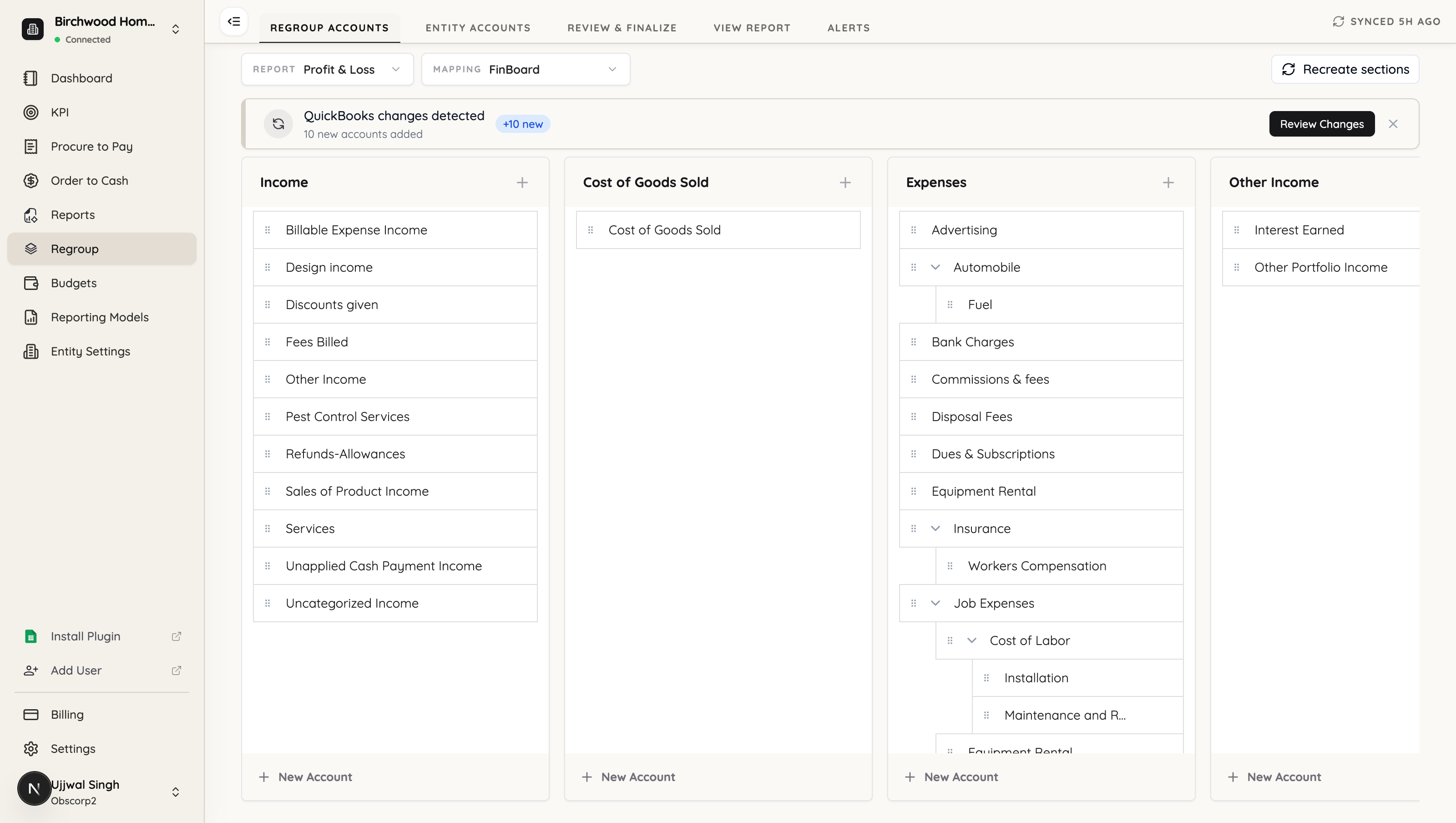
From here you have two ways to bring the changes in. Picking the right one matters, because they behave very differently.
| Review changes | Recreate sections | |
|---|---|---|
| Use when | A handful of accounts were added, renamed or moved | The chart of accounts has been restructured substantially |
| How it works | FinBoard suggests where each account belongs; you review and confirm | Selected sections are rebuilt from scratch from the current accounts |
| Your existing work | Preserved — only the accounts you confirm are touched | Replaced inside the sections you select |
| Scope | Account by account | Whole sections |
Start with Review changes. It is the safer path and handles most situations. Reach for Recreate only when so much has moved that reviewing account by account would take longer than rebuilding.
Review changes — for small edits
Click Review Changes on the banner, or open the Alerts tab.
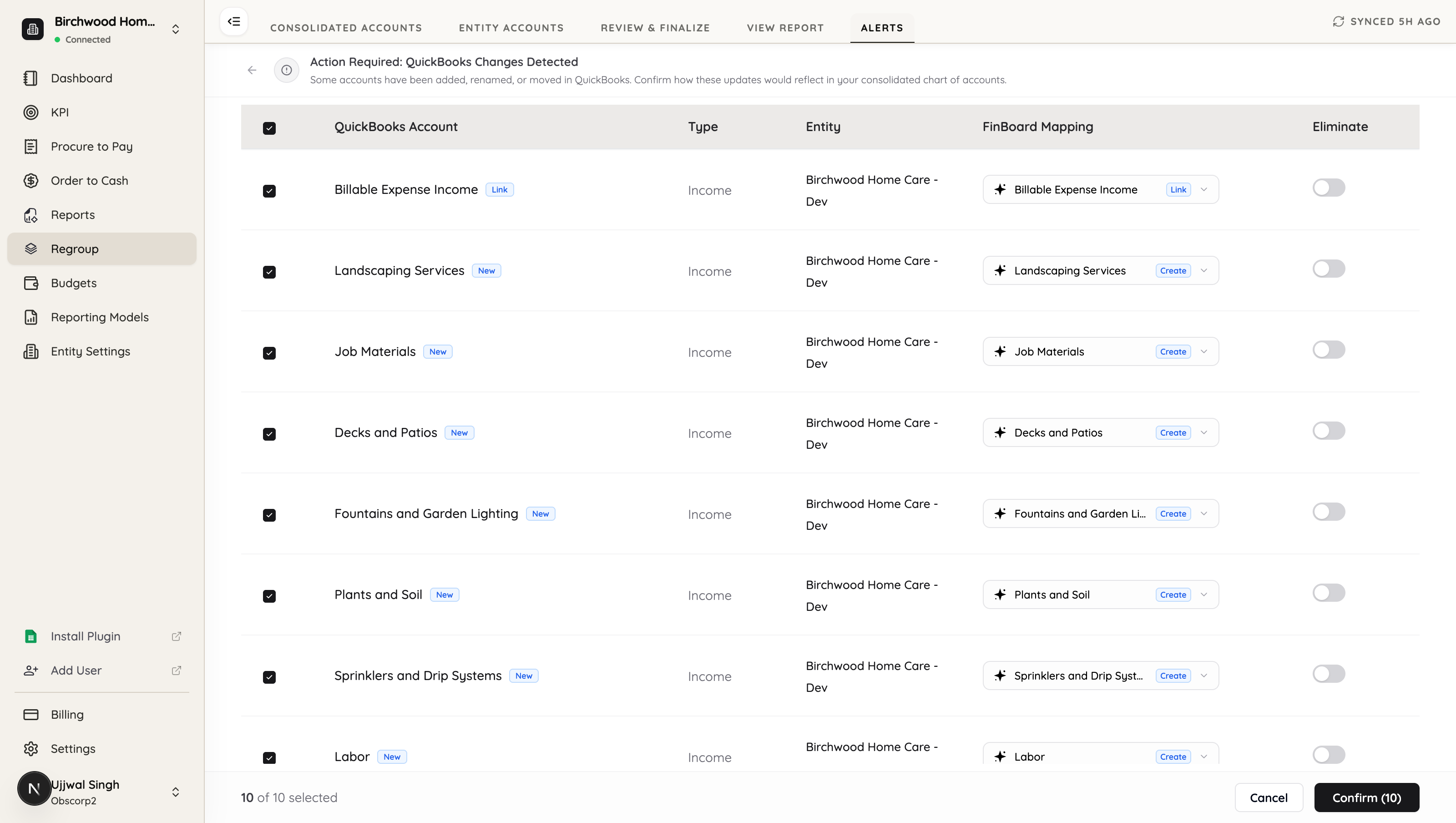
Every account that changed is listed with what happened to it and where FinBoard suggests it should go:
- New — the account does not exist in your mapping yet.
- Link — it already matches something in your structure and can simply be connected.
The FinBoard Mapping column is the suggestion. A Create badge means a new group will be added for it; a Link badge means it will be attached to a group you already have. Suggestions are proposals, not decisions — nothing is applied until you confirm.
Changing a suggestion
If a suggestion is not where you want the account, open its dropdown.
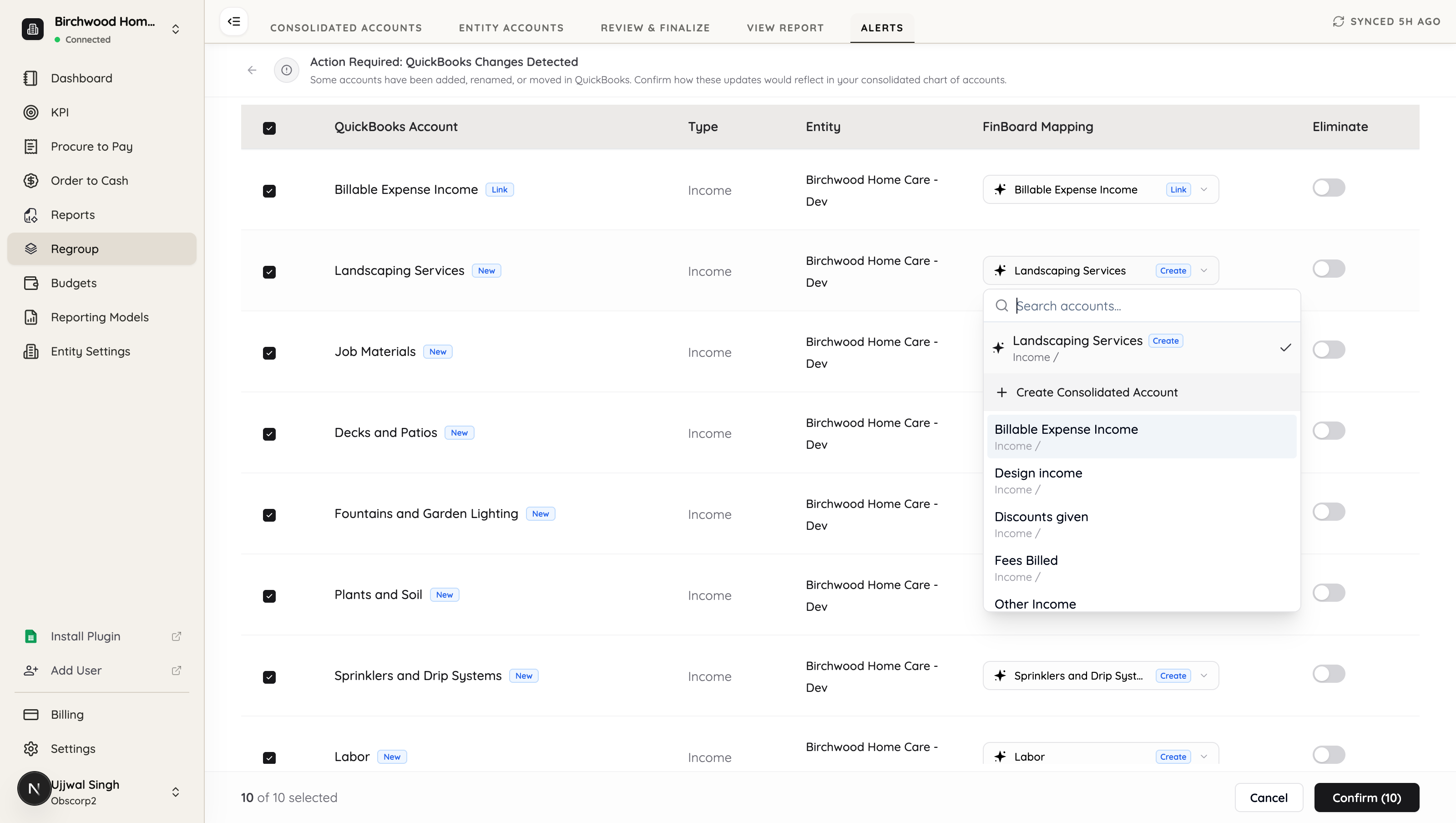
You can:
- keep the suggestion,
- search your structure and map the account into an existing group instead,
- or Create Consolidated Account to place it somewhere new.
Use the Eliminate toggle for accounts carrying intercompany transactions, and clear the checkbox on any row you would rather deal with later. The button counts what you are about to apply — Confirm (10) — so you can check the scope first.
Because you are confirming account by account, everything you built stays as it is. Only the accounts you accept are added or relinked.
Recreate sections — for a restructure
If the chart of accounts has been reorganised heavily, reviewing one account at a time stops being worth it. Recreate sections rebuilds whole sections from the current QuickBooks accounts instead.
Check the Report and Mapping selectors are set to what you want to change, then click Recreate sections.
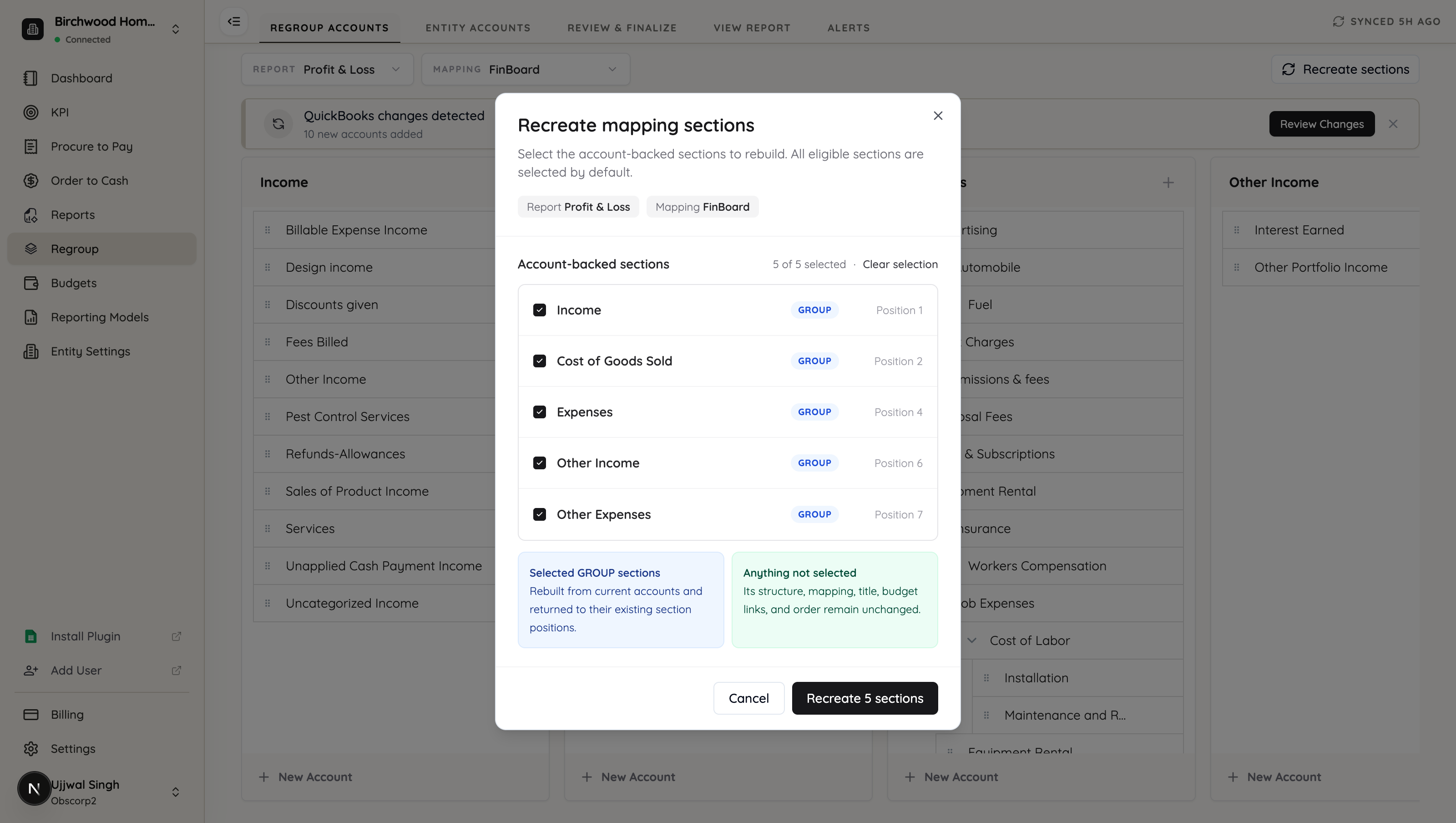
The dialog confirms the report and mapping it will act on, then lists the account-backed sections — the ones built from QuickBooks accounts, each with its position in the statement. All are selected by default. Calculated sections such as subtotals and totals are never listed and never touched.
Rebuild only what you need
Clear the sections you want to protect and keep only the ones to rebuild.
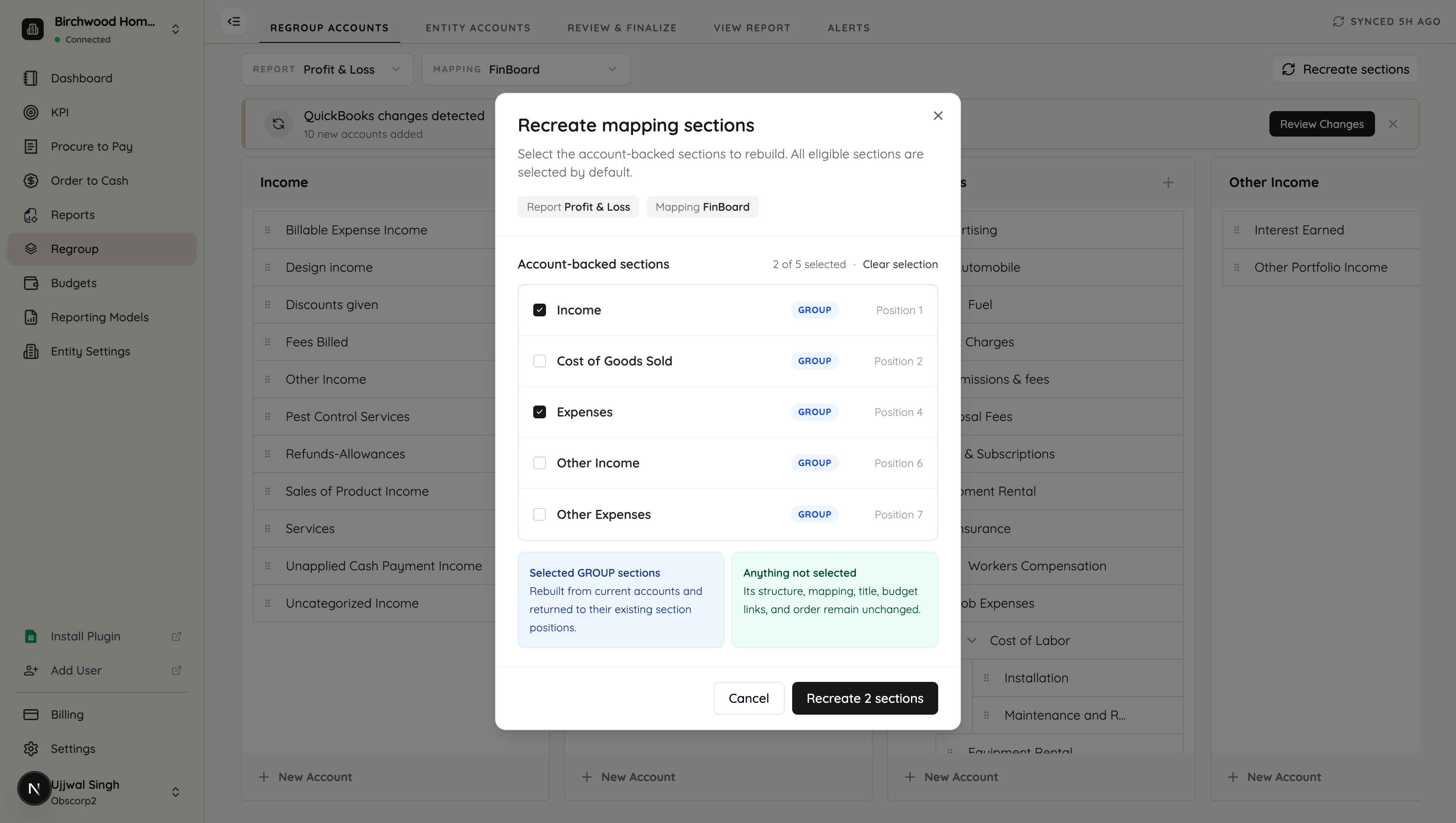
The button counts your selection — Recreate 2 sections — and the two panels restate the deal: selected sections are rebuilt from current accounts and returned to their existing positions, while anything not selected keeps its structure, mapping, title, budget links and order.
This is the destructive part. Rebuilding a section replaces its contents: custom groups you created inside it, titles you renamed, manual account mappings and budget links are all regenerated. If you have hand-tuned a section, leave it unselected — or use Review changes instead.
Accounts owned by another section
If an account is already mapped inside a section you did not select, that section keeps it. When a selected section is rebuilt, any account already owned elsewhere is left out of the new content rather than claimed twice.
Unselected sections always win. So you can rebuild one section without it quietly stealing accounts from another, and no account ends up counted twice in the same statement.
Each recreate saves a new version of that mapping only. Your other mappings for the same company are untouched — rebuilding the management view never disturbs the board view.
After either path
- Check the affected sections on Regroup Accounts / Consolidated Accounts and re-nest anything you want grouped differently.
- Open Entity Accounts and confirm nothing is left unmapped — the All mapped indicator is the quick check.
- Open View Report to confirm the statement reads correctly before you share it.
If someone else edited the mapping while your dialog was open, the change is rejected rather than applied over their work. Reload the page and run it again.
Related
- Regroup Accounts — building a mapping and its groups
- Apply mapping in reports — choosing a mapping when you run a report